Showing posts with label Visualforce Pages. Show all posts

Saturday, July 9, 2016

In the previous post of this tutorial, I helped you know how to display value of fields in Visualforce Page. Today I will show you how to get data from the user and update this data to the database.

To capture input data from a user, use the <apex:form>  tag with: 
  + <apex:inputField> Tag: This tag is most often used in a form. <apex:inputField>  renders the appropriate input widget based on field’s type. 
     For example, If field type is picklist field, a drop-down list displays on the form. If date field, a calendar widget displays on the form. 
  + <apex:commandButton> Tag to submit the form. 

For example, the following page displays and allows users to edit and save the Email of a Contact: 

Step 1: Create a visualforce page

<apex:page standardcontroller="Contact">
    <apex:form>
        Hello <br/>
        <b>{!contact.name}</b><br/>
        <apex:inputField value="{!contact.email}"/><br/>
        <apex:commandButton action="{!save}" value="Save Email"/><br/>
    </apex:form>
</apex:page>

+  The <apex:inputField> tag: Value attribute contains {!contact.email} used to display the field’s value in the page.
+  The <apex:commandButton> tag: Action attribute invokes the save action of the standard Contact controller.
Step 2: Add the Contact ID as a query string parameter to the end of the URL in your browser's address bar.
For example: https://c.ap2.visual.force.com/apex/HelloPage?id=0032800000U4mkxAAB
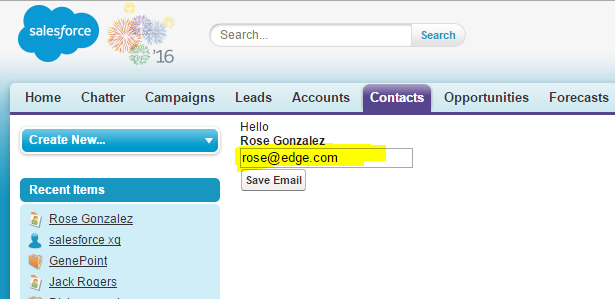


Step 3: Edit and save Email


Step 4: Email has been updated

I look forward to receiving feedback from you to improve this post. Thank you for visiting my blog.

Wednesday, July 6, 2016

In this guide, I'm going to show you how to get started with Visualforce Page by display value of fields from a record in Visualforce Page.

Follow these step-by-step instructions to display Field Values with Visualforce.

Step 1: Login Salesforce => Create your Salesforce Project => Create your visualforce page

To display value of fields from a record in Visualforce Page you need to create a visualforce page. If you need more information for this step, please click:
 + How to create New Salesforce Project with MavensMate In Sublime Text 3: http://salesforcexq.blogspot.com/2016/07/Installing-MavensMate-with-Sublime-Text-3.html 
 + How to create a Visualforce page: http://salesforcexq.blogspot.com/2016/07/what-is-visualforce-introduction-to-visualforce-pages.html
For example:
<apex:page>
    Hello
</apex:page>

Step 2: Add the standardController attribute to the tag.

To access fields from a record data such as: User, Account, Contact, ... or custom object record, you need to associate your page with a controller.

Salesforce includes standard controllers for every standard object and custom object with basic database operations, such as queries.

For example, to display an Contact's name on a visualforce page, use the standard controller for Contact, add the standardController attribute to the tag.
<apex:page standardcontroller="Contact">
    Hello
</apex:page>

Step 3:  Access fields on the record

You can now access fields on the SObject record currently in context by using syntax: {!<sObject>.<fieldname>}
For example, to display an user's name on a page, use {!contact.name}.
<apex:page standardcontroller="Contact">
    Hello <br/>
    {!contact.name}
</apex:page>

The {!contact.name} expression makes a call to the getRecord() method in the standard Contact controller to returns the record that is currently in context, based on the value of the id query string parameter in the Visualforce page URL. It then uses dot notation to access the name field for that record.

Step 4: Add a query parameter to the page URL 

To access an Contact record, you must add a query Id parameter to the page URL. To do this:
+ Find the ID of an Contact.

+ Add the Contact ID as a query string parameter to the end of the URL in your browser's address bar. For example: https://c.ap2.visual.force.com/apex/HelloPage?id=0032800000U4mkzAAB

* Result *

Saturday, July 2, 2016

1. What is Visualforce?

Visualforce is the framework used to build, custom user interfaces on the Force.com platform. This is very interesting tool. Developers define pages through specifying Visualforce markup and a Visualforce controller.

This framework includes a component-based markup language, that is very similar to Hyper Text Markup Language (HTML) and supports many development technologies such as HTML, CSS, Ajax, Javascript, jquery,... within a single tag

Visualforce controllers consist of instructions that specify what happens when users interact with page components (Click link, Click Button, Selected checkbox,...). The behavior of Visualforce Page components can be controlled by the standard logic for Salesforce pages, or developers can associate their own logic with a controller class.


+ Standard controller: Automatically provided for standard objects and custom objects with basic database operations, such as queries and saves,... 

+ Custom controller: You can write your different logic, functionality or override existing functionality that was already provided in a standard controller. 

+ Extension controller: Adds to or overrides behavior in a standard or custom controller


2. How to create a Visualforce page

We will be utilizing Sublime text throughout our tutorial for code execution as it is simple and user friendly for learning. If you don’t already have install MavensMate with Sublime Text 3 CLICK HERE (Installing MavensMate with Sublime Text 3) 

 Step 1: Go to  MavenMate => Metadata => New Visualforce Page


Step 2: In the list of available pages => Search for Visualforce page and And Select Visualforce Page.


Step 3: Enter your visualforce page name and press Enter. Your Visualforce Page will created and a page will be displayed in your salesforce project


Step 4: You now have a Visualforce page that includes default text. Next, Edit your new page and Ctrl + Shift + S to save.

Ex: I want this page displays the text "Hello"


Step 5: HOW TO ACCESS THE VISUALFORCE PAGE? Your page can be accessed using https://c.ap2.visual.force.com/apex/yourPageName